Summary
The internet browser, Internet Explorer, requires the advanced setting TLS 1.2 to be enabled in order to access e-Builder. Please see the instructions below on how to enable this setting if this is your preferred browser.
We encourage all users to switch to using the browsers Google Chrome and Microsoft Edge.
Please contact the CTA e-Builder System Administration team for any e-Builder related issues at support@ctasupport.zendesk.com.
Instructions
Note: Do not change any of your existing browser settings. Only enable the setting as outlined below.
- Step 1: Open the browser Internet Explorer
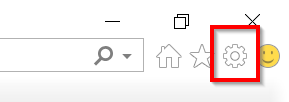
- Step 2: Open the browser settings by clicking the gear icon located in the top right corner
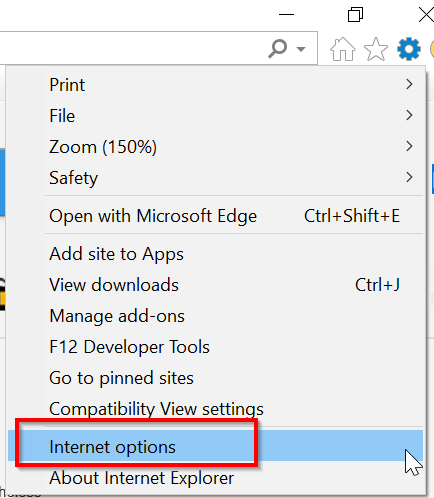
- Step 3: Select "Internet Options"
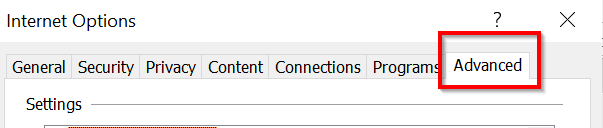
- Step 4: Select the tab "Advanced"
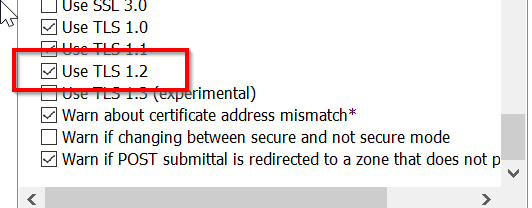
- Step 5: Scroll down and toggle on the setting "TLS 1.2"
- Step 6: Select "Apply" and then select "OK"
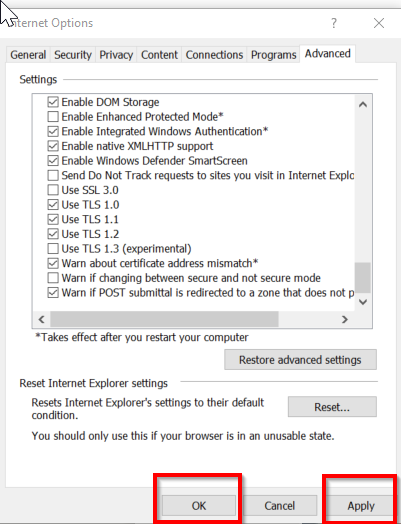
- Step 7: Navigate to the e-Builder Login page and confirm you have the ability to login.
- e-Builder Login page: https://app.e-builder.net/auth/www/index.aspx?ReturnUrl=/index.aspx
- If you find that you have difficulty logging into e-Builder, please contact the CTA e-Builder System Administration team at support@ctasupport.zendesk.com